Add a free gift
Gifts that add themselves to the cart: spend thresholds, buy X get Y, complete-the-set, or a gift shoppers choose.
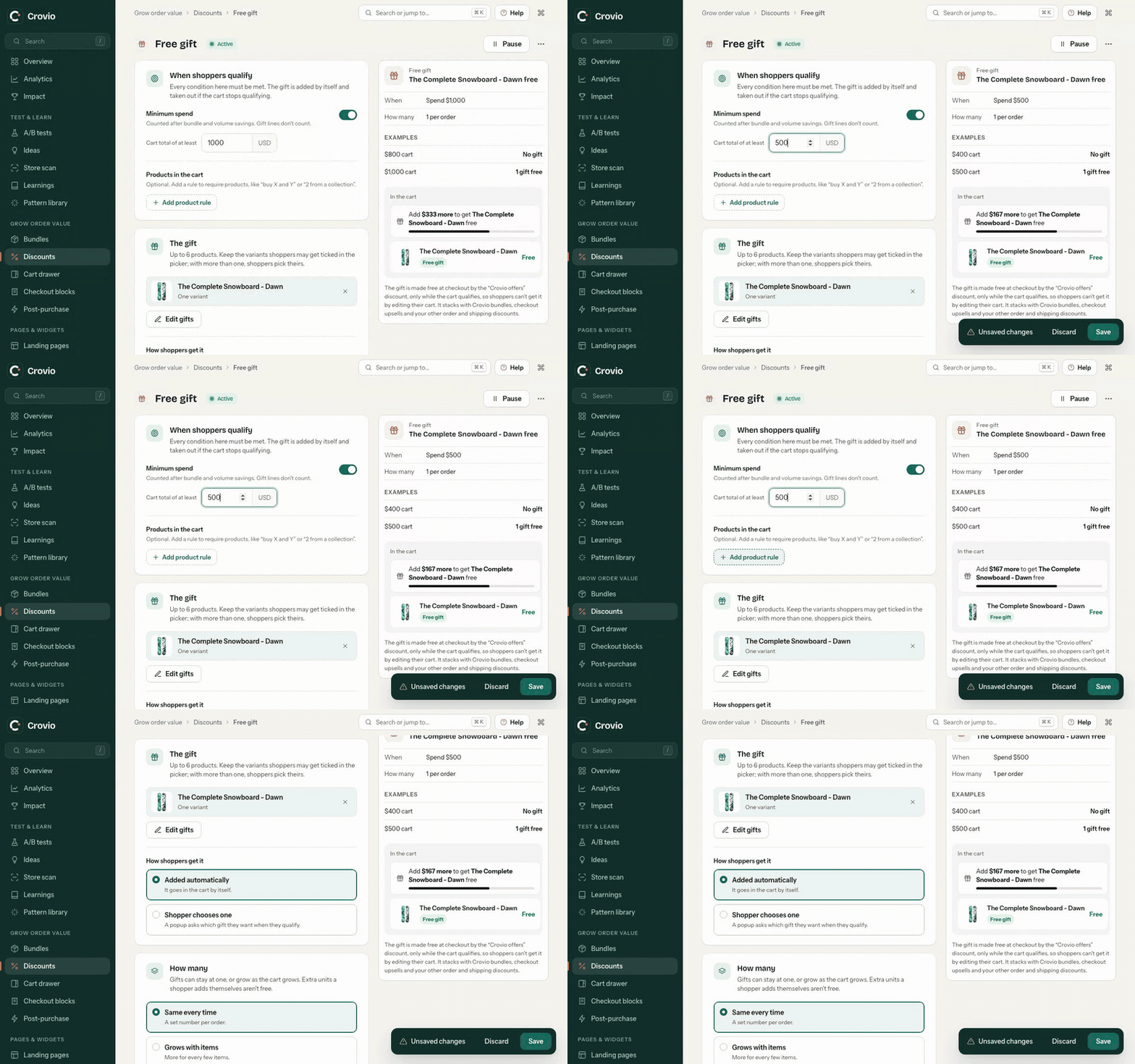
- Go to Discounts → New discount → Free gift. A blank gift offers four starting points: Spend threshold, Buy X, get Y, Complete the set and Choose your gift.
- Under When shoppers qualify, set what the cart needs. Every condition must be met:
- Minimum spend: a cart total, counted after bundle and volume savings. Gift lines don't count.
- Products in the cart: one or more rules, each "at least N" of specific products, a collection or any product. With several products in a rule, choose Any mix of these (N in total) or Each of these (N of every one, for "buy X, Y and Z"). With several rules, choose All rules or Any rule.
- Under The gift, pick up to six products. In the picker, keep ticked the variants shoppers may get; with more than one, they pick theirs (the first one in stock is added for them).
- Under How shoppers get it, choose Added automatically (every gift goes in the cart) or Shopper chooses one (a popup asks which gift they want when they qualify; they can change it from the cart).
- Under How many, choose:
- Same every time: a set number per order.
- Grows with items: that number again every time the cart meets the product rules once more (with no product rule: for every few items).
- Grows with spend: that number for every amount spent. Turn on Limit how many to cap it. Orders never get more than 50 free units.
- Under Customers and dates, optionally limit it to signed-in customers, customers with a tag, or everyone except customers with a tag, and set start and end dates (your store's time zone; the end date runs to the end of that day).
- Under Cart and checkout messages, edit the progress message (
{{remaining}}becomes "$20.00 more" or "1 more Lavender soap",{{gift}}the gift's name), the message once it's added, and the Checkout label. Then click Save & activate.
The gift is added to the cart, topped up when more are earned, and taken out again when the cart stops qualifying. A gift a shopper removes themselves isn't added back during their visit. The messages appear on the cart page, in your theme's cart drawer where Crovio can find it, and in the Crovio cart drawer. To place them somewhere else (for example in a page-builder section), add an element with the data-crovio-gifts attribute.
Gifts unlocked by spend alone also show in the cart drawer's rewards bar and a checkout rewards block.
Was this page helpful?