Churn, cancel offers and failed payments
See who cancels and why, show each cancel reason its own offer to stay, and win back failed payments with retries.
On this page
Three tabs in Subscriptions keep subscribers from leaving: Churn shows what's happening, Cancel offers is where you act on it, and Failed payments recovers customers who didn't mean to leave at all.
Churn
Subscriptions → Churn shows what the last 90 days looked like, and who is at risk now.
- Churn, last 30 days (with new and cancelled counts), Saved from cancelling (and the save rate), Failed payments recovered and Orders before cancelling.
- Why customers cancel: the reasons picked when cancelling, each with the offer it gets now.
- What kept customers: discounts, pauses, skips and swaps accepted instead of cancelling.
- New vs cancelled: subscriptions started and cancelled per week, last 12 weeks.
- Recent cancellations, with the reason, products, how many orders they placed and the order total.
Click Saved from cancelling to change your offers, or Failed payments recovered to open the Failed payments tab and see who is at risk.
Cancel offers
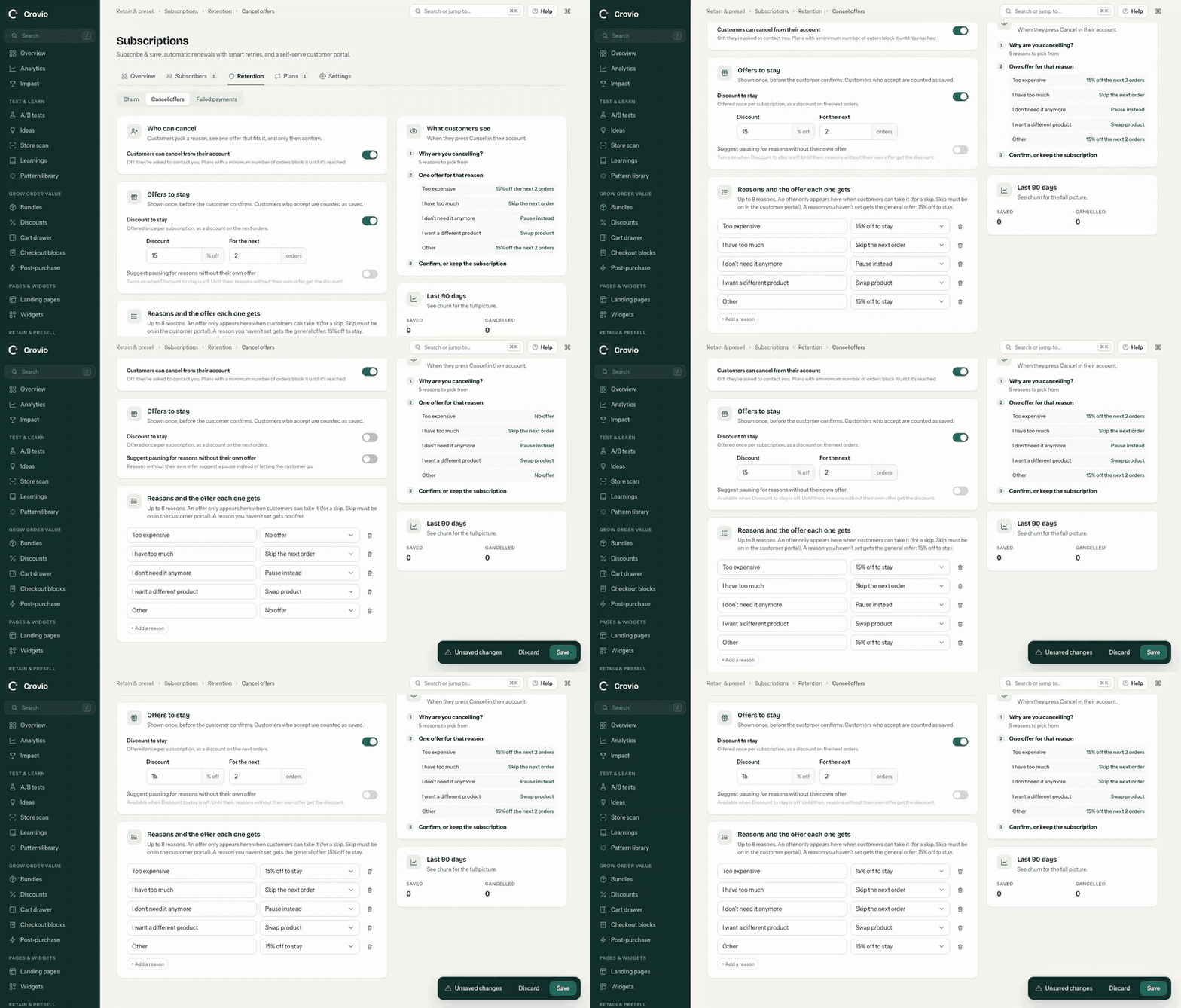
Subscriptions → Cancel offers is your cancellation flow. When a customer cancels from their account, they pick a reason, see one offer that fits it, and only then confirm.
- Who can cancel: switch Customers can cancel from their account on or off. Off, customers are asked to contact you. Plans with a minimum number of orders block cancelling until it's reached.
- Offers to stay:
- Discount to stay: a percent off the next few orders, offered once per subscription.
- Suggest pausing for reasons without their own offer (needs pausing on in the customer portal). It is only used while Discount to stay is off: with the discount on, reasons without their own offer get the discount instead.
- Reasons and the offer each one gets: up to 8 reasons. Pick an offer for each: the discount, a pause, a skip, a different delivery frequency, a swap, or no offer. For example "Too expensive" gets the discount, "I have too much" a skip, "I need a different product" a swap. Use + Add a reason for your own.
- Click Save.
An offer only shows in the list when customers can take it. A skip needs Skip the next order on in Settings → Customer portal, a swap needs swapping on, and so on. A reason without its own offer gets the general one: the discount when Discount to stay is on, otherwise a pause when Suggest pausing for reasons without their own offer is on.
Beside the settings, a preview shows what customers see, and Last 90 days shows how many were saved and cancelled, and how many picked each reason.
Failed payments
When a renewal payment fails, Crovio retries the saved card. Subscriptions → Failed payments shows:
- At risk now (retrying, or waiting on 3-D Secure, or stopped), Recovered, 90 days and Lost to failed payments.
- Payments to watch: each subscription at risk. Open in Subscribers shows them in the list (the Payment issues tab).
Retry schedule
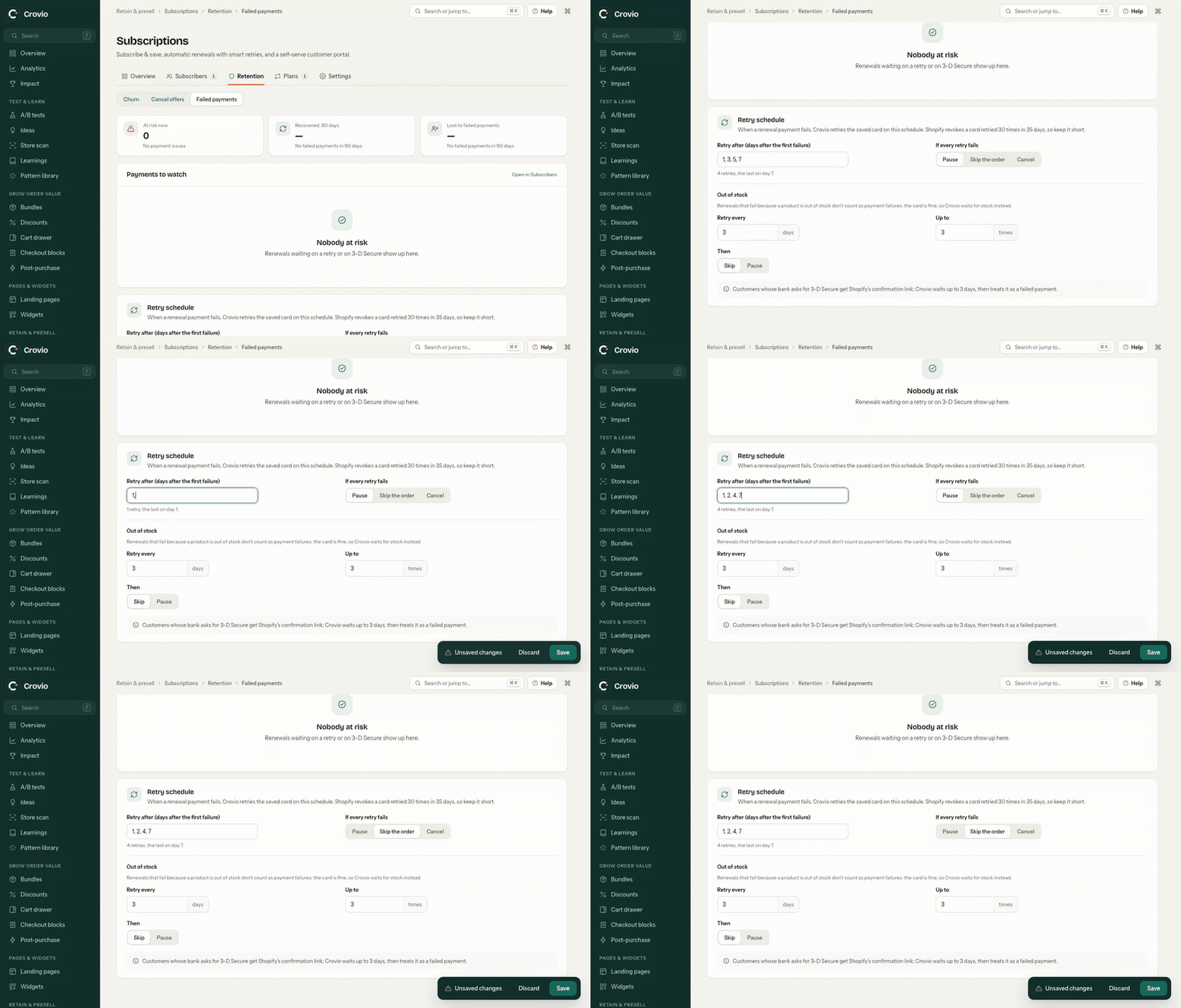
- Retry after: days after the first failure. The default is
1, 3, 5, 7. Empty means no retries. - If every retry fails: Pause, Skip the order or Cancel.
- Out of stock: renewals that fail because a product is out of stock don't count as payment failures; the card is fine, so Crovio waits for stock. Set how often to retry, how many times, and what happens Then (Skip or Pause). The default is every 3 days, 3 times, then skip.
Failing renewals also show on the subscriber's page and under Needs attention on Overview. To email the customer or alert your team, use the Subscription payment failed event in Shopify Flow. Order tags and Shopify Flow
Was this page helpful?