Get help in the app
Chat with Crovio's Help assistant from any page: questions in your own words, step-by-step walkthroughs with links to the right screens, and a hand-off to Claude.
On this page
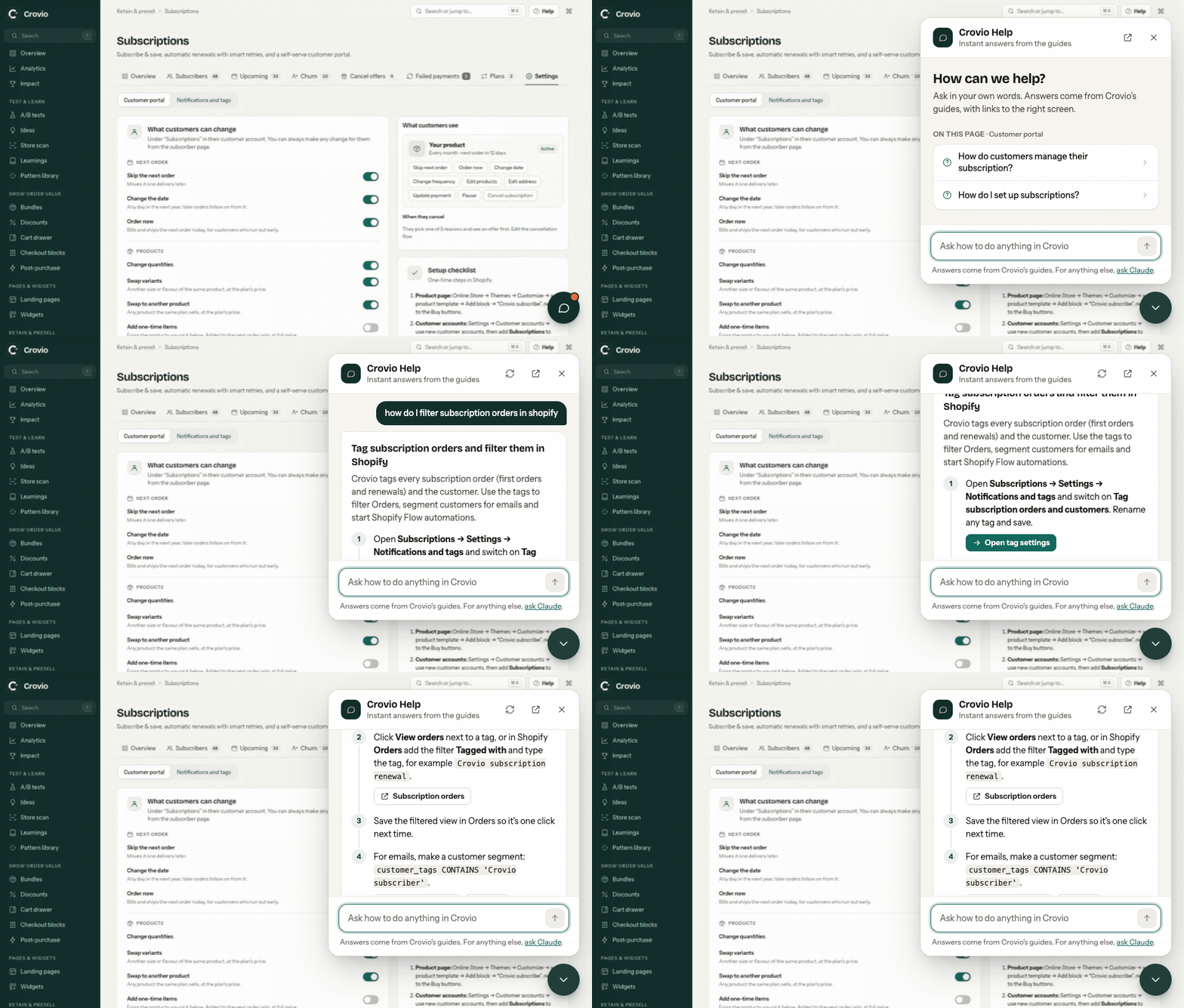
Every Crovio page has a chat button in the bottom-right corner and a Help button in the top bar. Inside a test you can also open it from the Learn more link on each tab and test type. All of them open the Help assistant: a chat that answers from these guides and walks you through tasks step by step.
Ask a question
- Click the chat button (or Help). You'll see suggested questions for the page you're on, and popular ones.
- Type a question in your own words, for example "how do I filter subscription orders in Shopify?" or "hide cash on delivery for big orders". Suggestions appear as you type.
- Press Enter.
The answer is a short walkthrough with numbered steps (long ones show the first few, with Show all steps). A step can have a button to the exact Crovio screen, a link to the right Shopify admin page, or a snippet with a copy button. The chat stays open while you move between Crovio pages, so you can follow along. Below the steps: Read the full guide, related guides and related questions. Answers taken straight from a guide fold after about a screen; Show more opens the rest.
Your conversation is kept until you close the browser tab, even if you reload the page (earlier questions are folded under Show earlier questions). Click New chat in the chat header to clear it. Press Esc, the × in the header or the chat button to close it. On a phone the chat opens full screen.
When a Save bar is showing, it sits to the left of the chat button (above it on a phone), whether the chat is open or not, so neither covers the other. The button hides only in full-screen editors (post-purchase and landing pages), which have their own controls in that corner. While a Crovio dialog is open, the chat steps aside and comes back when the dialog closes.
Ask Claude
Every answer ends with Not quite right? Ask Claude. It opens Claude in a new tab with your question and the page you're on already written. With the Claude connector, Claude can also look at your store's setup in Crovio and do the work for you. Without it, Claude still answers from what it knows about Crovio.
Other ways to get help
- These docs: crovio.app/docs, with search.
- The chat button in the corner of crovio.app answers from these docs too, before you install.
- Email: hello@crovio.app. When the chat can't find an answer, Email us writes the email for you, with your question and the page you're on.
Was this page helpful?