Create a pre-order campaign
Sell products before they're in stock, with full payment or a deposit, and ship when you release.
On this page
A pre-order campaign lets shoppers buy products that aren't in stock yet. Shopify takes the first payment at checkout and saves the card; Crovio holds fulfilment so nothing ships early, then charges any balance and releases the orders when stock arrives.
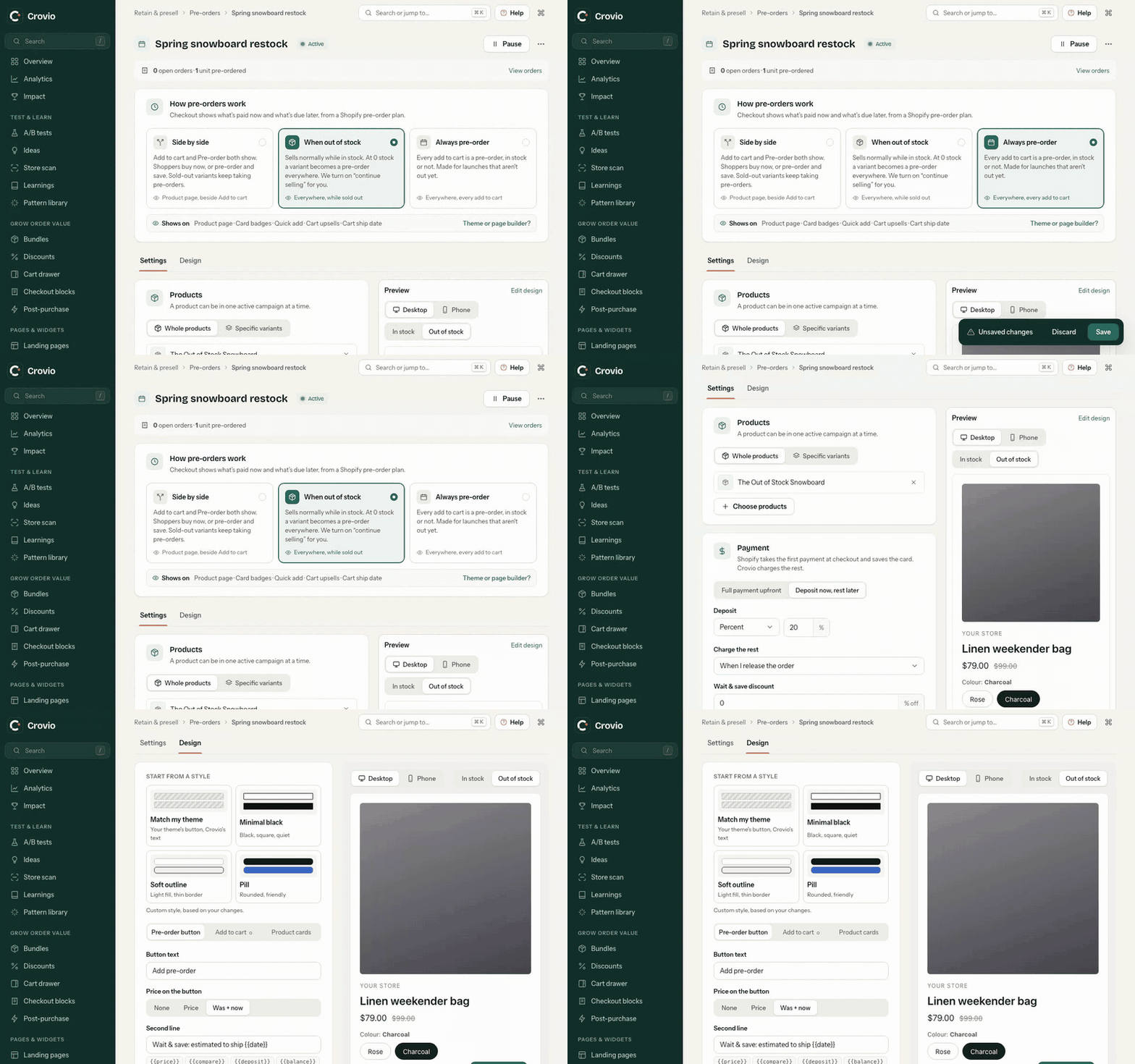
1. Create the campaign
- Go to Pre-orders → Create campaign and name it.
- Choose How pre-orders work: Side by side, When out of stock or Always pre-order. Choose a pre-order mode.
2. Choose the products
Under Products, apply it to Whole products or Specific variants. A product can be in one active campaign at a time.
3. Choose how shoppers pay
Full payment upfront, or Deposit now, rest later, with an optional Wait & save discount. Deposits and payment.
4. Shipping and release
- Expected ship date (optional), and whether to show it on the cart line.
- Release automatically on the ship date: charges any balance owed, then lifts the holds. Otherwise, use Release orders when stock arrives. Release and charge.
5. Product page message
A line under the buttons, for example "Pre-order: ships around {{date}}." {{date}} is your ship date, so set one or remove it. To choose where the message sits, add the Crovio pre-order block to the product template.
6. Limit and schedule
Max units (0 = no limit), Starts and Ends. Pre-orders close by themselves at the limit or the end date. Overview warns you when a campaign is within 20% of its limit, and when it's sold out (the pre-order button is then hidden).
7. Design and activate
Style the buttons on the Design tab (Button designer), then click Save & activate.
Checkout shows what's paid now and what's due later, because pre-order lines carry a Shopify pre-order plan.
Was this page helpful?