Instagram-style stories
A row of story circles shoppers tap to watch full screen, with product buttons and videos, placed anywhere on your store.
The Instagram stories widget shows a row of round story circles with a coloured ring, like social apps. Tapping one opens a full-screen story with images or videos and a button to a product or page, or goes straight to a link.
1. Create it
Go to Widgets → New widget → Instagram stories. Add your first stories with:
- Upload images: one story per image.
- From products: each story gets the product photo, its name and a button to it.
- Blank story: fill it in yourself.
2. Edit each story
On the Content tab, open a story to set:
- When tapped: Open the story (full screen) or Go to a link straight away.
- Circle image: square works best. Empty uses the story's image or video poster.
- Story content: the Full-screen image (vertical 9:16 fills the screen) and any videos. Videos show Processing for a moment after upload.
- Shows for: how long an image stays on screen.
- Button text: shown at the bottom of the story when it has a link.
Stories linked to a product
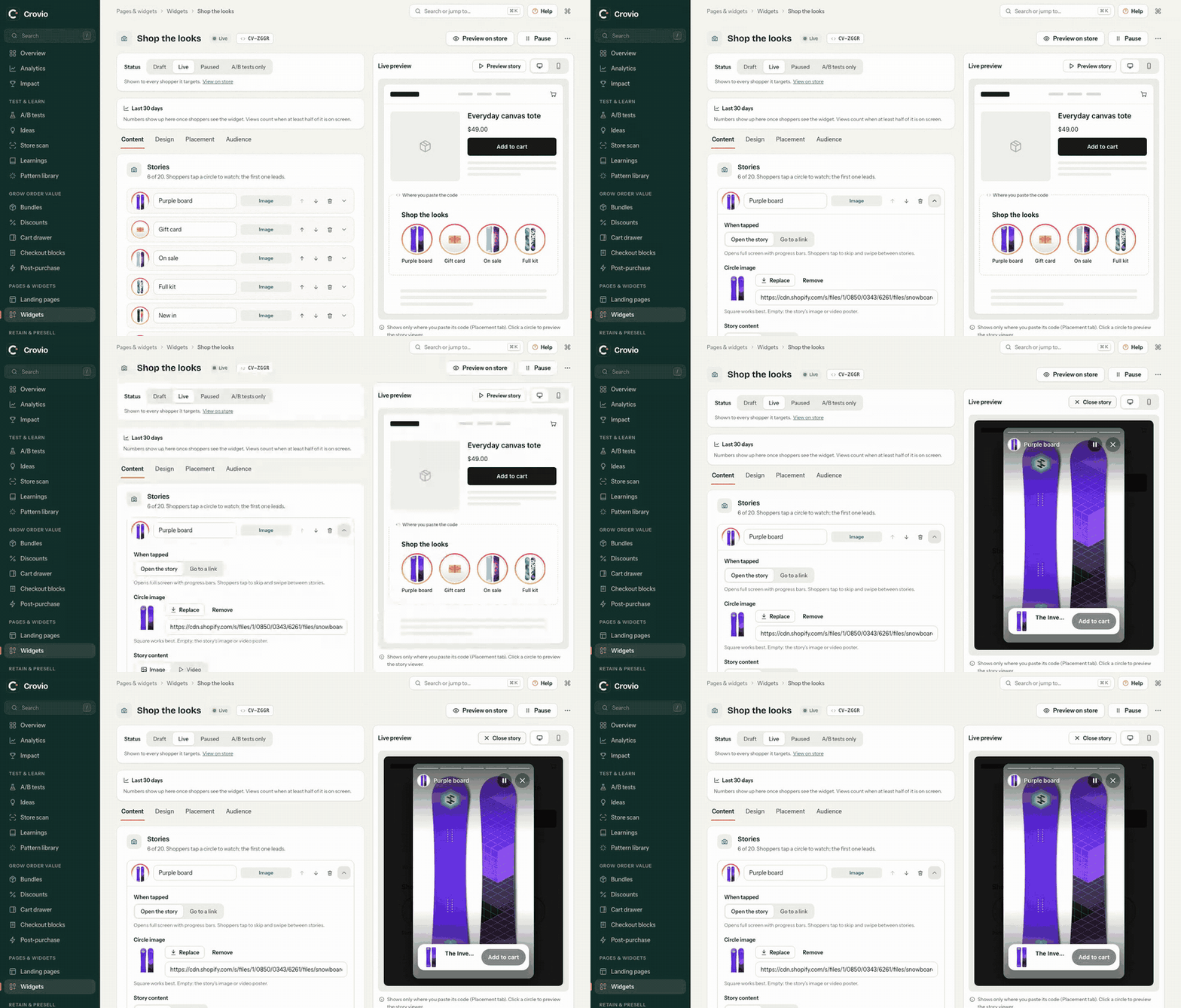
A story made with From products stays linked to that product. In the viewer it shows a product chip with the product photo, name, live price (in the shopper's currency) and an Add to cart button, so shoppers can buy without leaving the story.
- Products with one option add straight to the cart. The story pauses, and the button turns into View cart.
- Products with several options (sizes, colours) send the shopper to the product page to pick one.
- Sold-out products show Sold out instead.
3. Design
On the Design tab:
- Circles: an optional heading, alignment, Circle size (phones get 86% of it), the space between, shape, titles and the Ring colour (or a ring preset). Watched stories get a grey ring. The row uses your theme's font.
- Story viewer: full screen on phones, a centred 9:16 story on desktop. Shoppers tap right or left, swipe, hold to pause and swipe down to close. Choose Progress bars and whether Videos start with sound (shoppers can always mute).
4. Place it
On the Placement tab, choose Position on the page:
| Position | Where |
|---|---|
| In the product info | Right above Add to cart. Other pages: under the first section |
| Below the product section | Under the photos and buy buttons. Other pages: under the first section |
| Top of the page | At the top of the page content, like a social feed. Great on the home page |
| Above the footer | At the end of the page content |
| After an element | Next to a CSS selector you enter, for example .product__title |
| Only where I place it | Nowhere by itself: only where you put its widget code |
To put it in an exact spot or inside a page builder, use its widget code. Place a widget exactly.
Then set the Audience tab (pages, devices, visitors, dates) and set it Live. Preview on store shows it on your store first, only to you.
Was this page helpful?